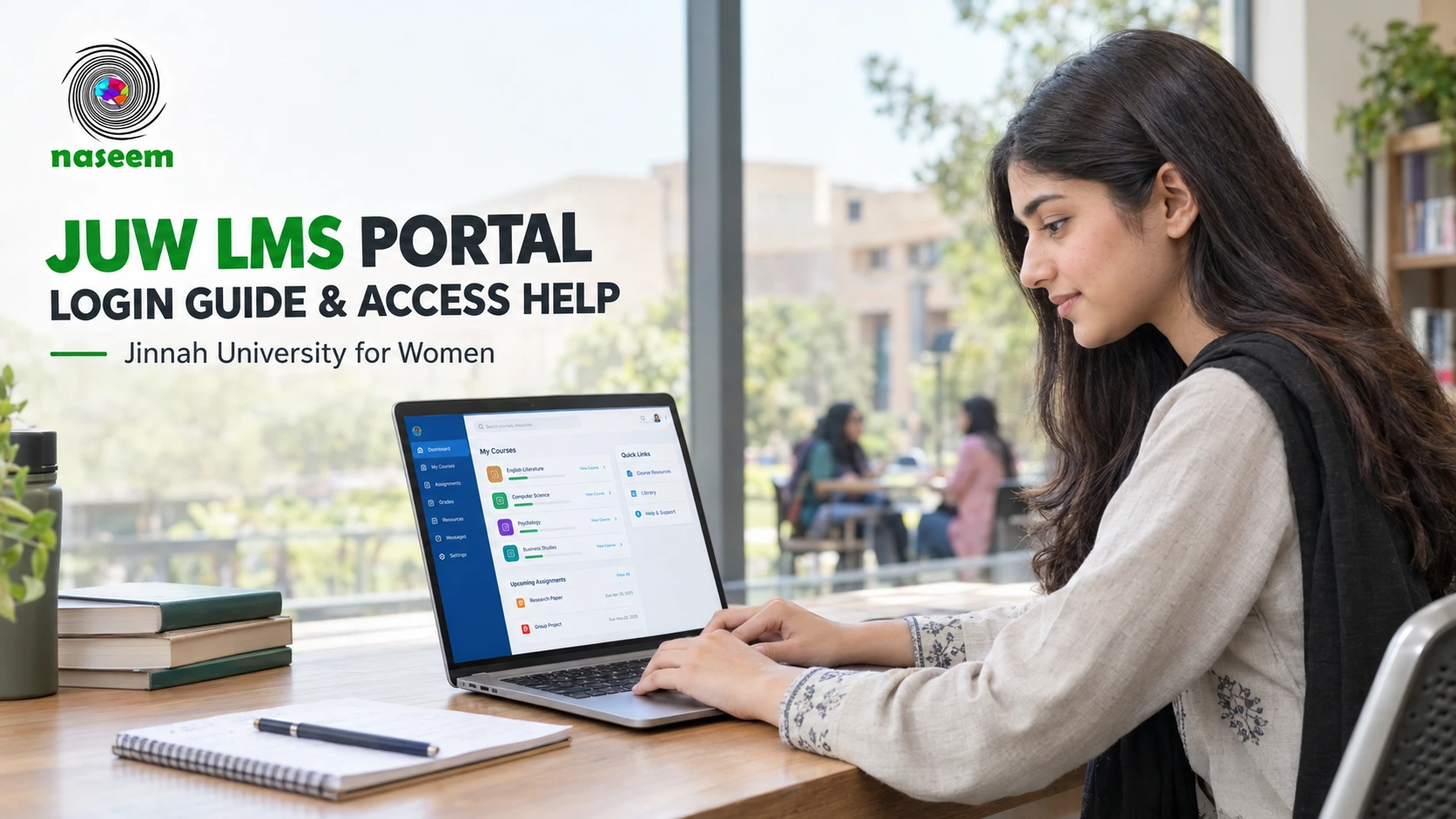
JUW LMS Portal: Login Guide, Access Help and LMS Information
JUW LMS is the learning management system used by Jinnah University for Women (JUW), Karachi, Pakistan, to support teaching and learning. The university's official portal is available at lms.juw.edu.pk, where users can sign in with their assigned username and password. The university's 2026 prospectus identifies Moodle as the software behind its LMS and records that the portal was initiated on 13 July 2016.
This guide explains how to access the JUW LMS portal, what to do if you cannot log in, where to find official support, and what the university has documented about the system. It also explains how a university LMS differs from a school learning management system and what school administrators should consider when choosing one.
What Is JUW LMS?
JUW LMS stands for Jinnah University for Women's Learning Management System. It is the university's digital learning platform, designed to support teaching and learning activities.
According to the university's official website, the portal was introduced on 13 July 2016. The university also identifies Moodle, an open-source learning management system, as the software on which its LMS is based.
The university's prospectus describes the system's role in supporting its teaching and learning processes, including the delivery of online courses during the COVID-19 pandemic.
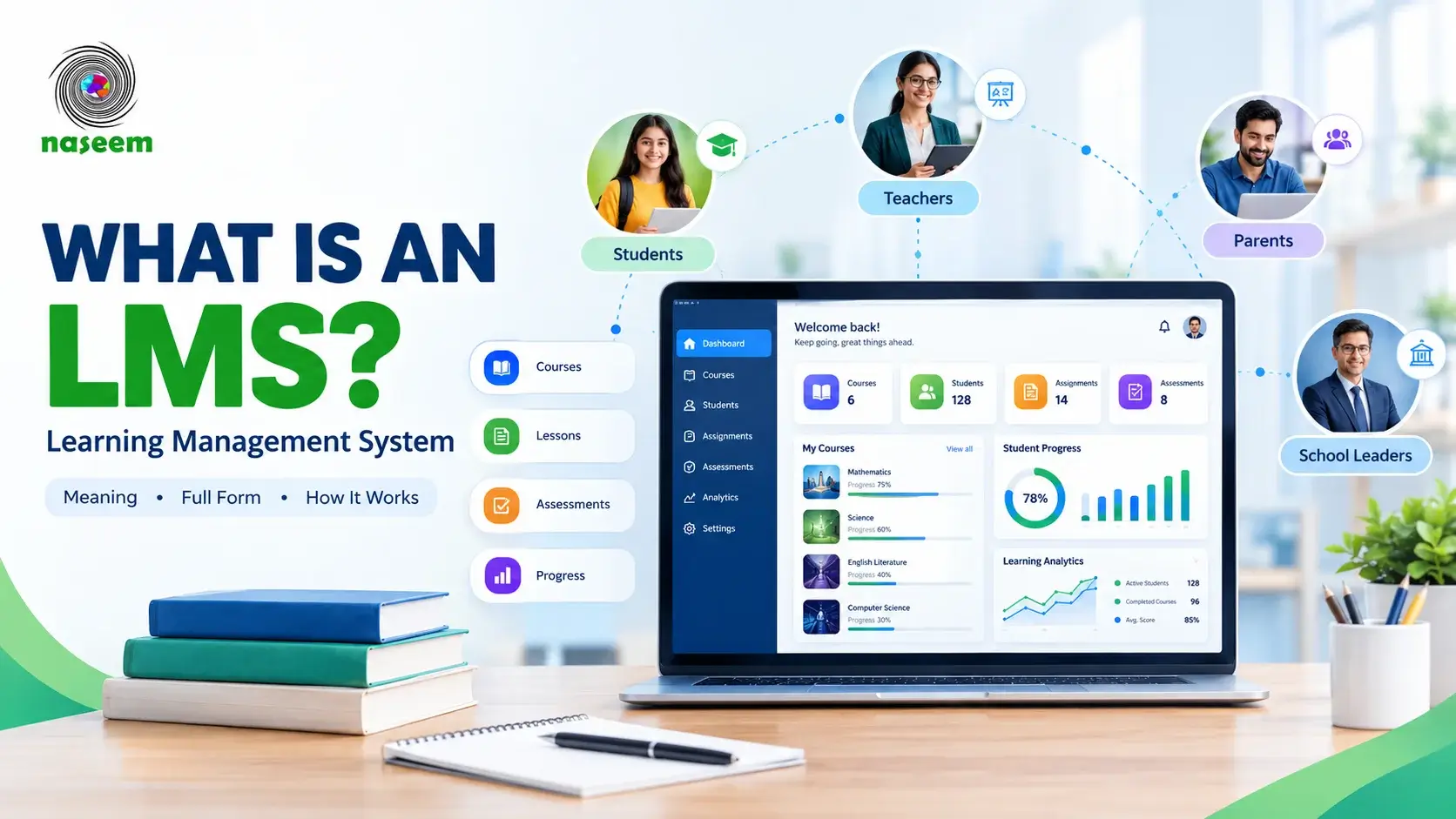
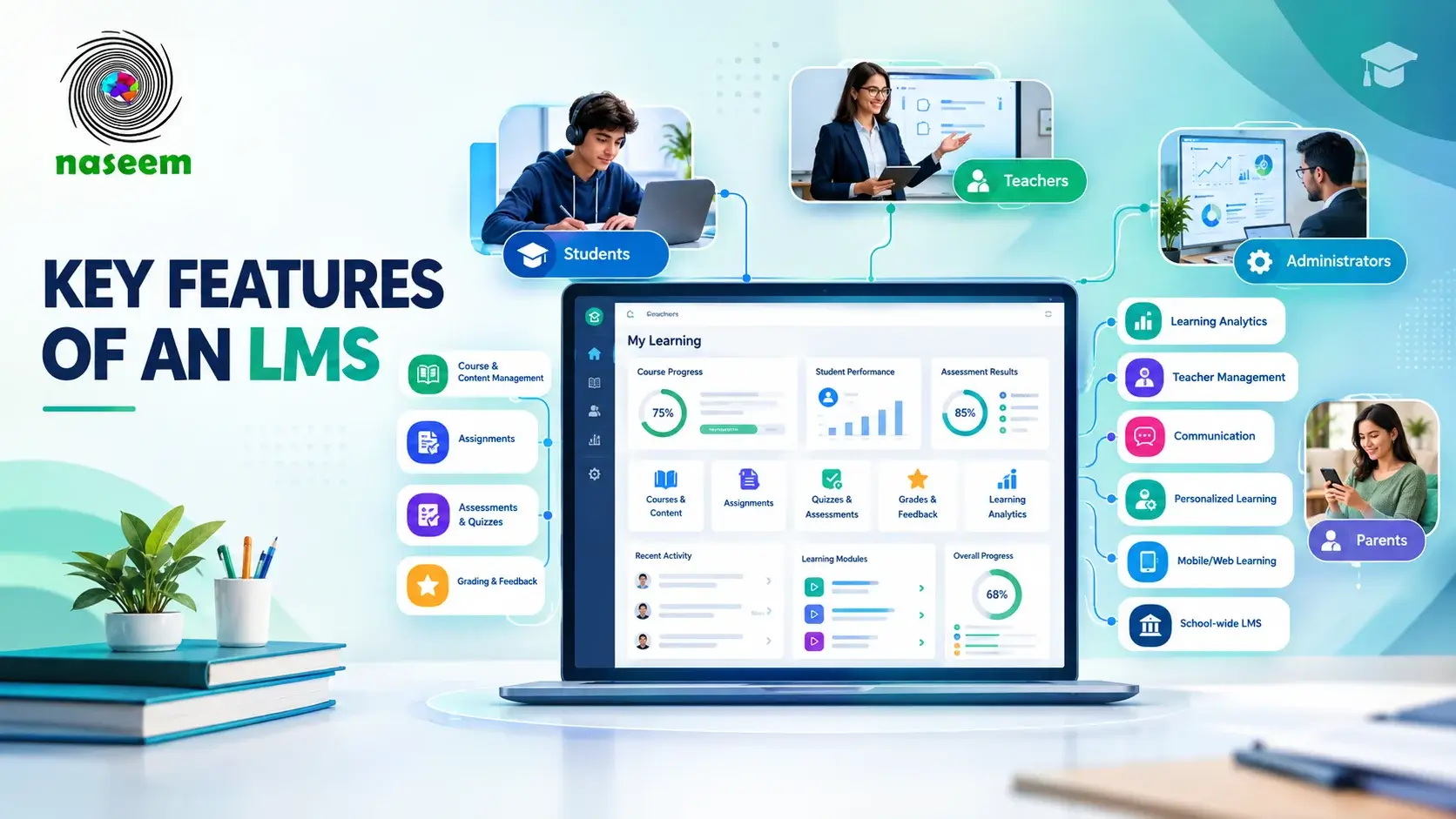
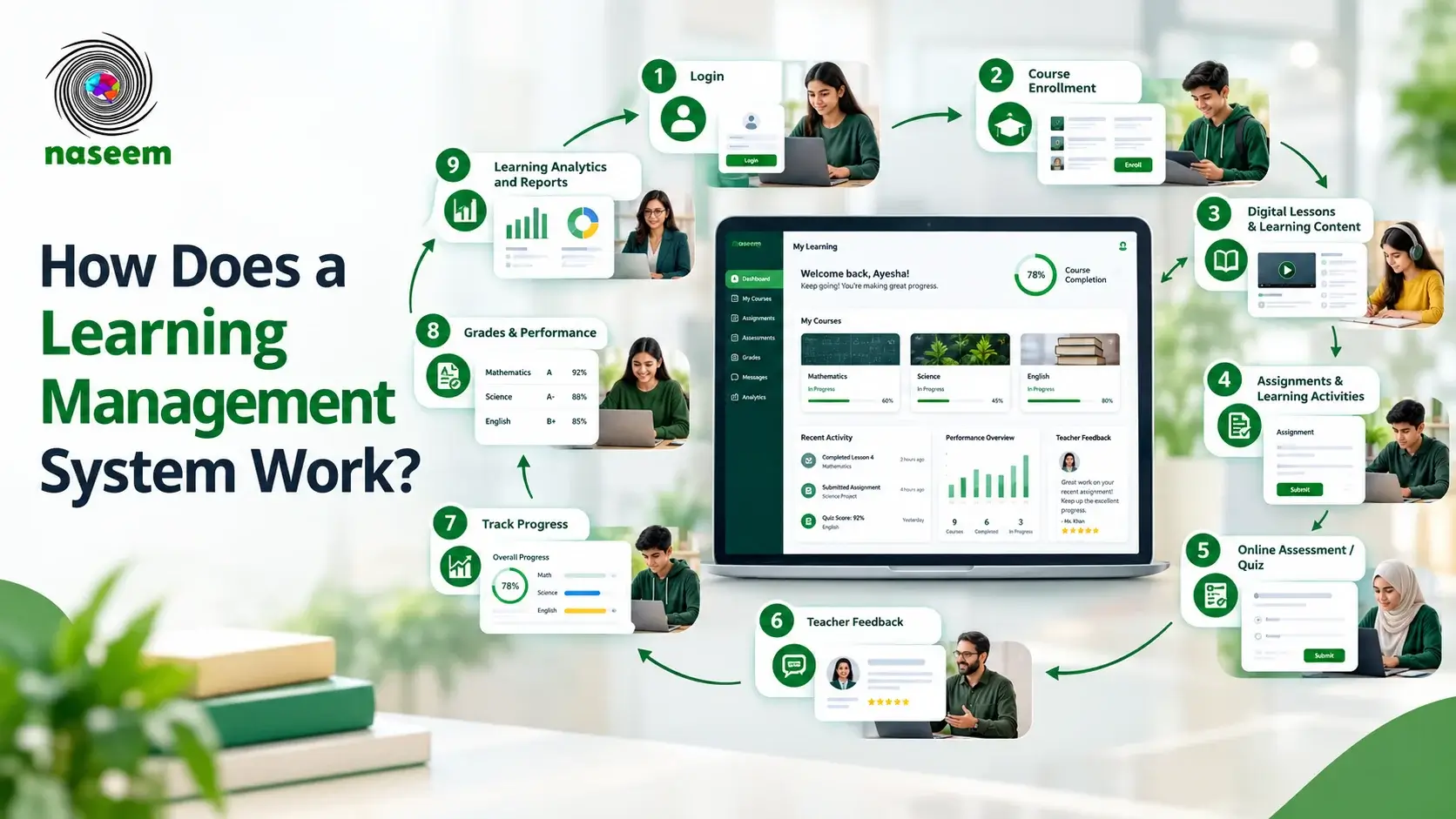
An LMS generally provides a structured environment for managing digital learning. Depending on the platform and how an institution configures it, this type of software can support course materials, learning activities, assignments, assessments and communication between teachers and students.
However, the functions available in a particular LMS depend on the institution's setup. Not every feature offered by Moodle is necessarily enabled on the JUW platform.
Students and faculty should therefore use the official JUW portal and university instructions when checking which services are available to their accounts.
How to Access the JUW LMS Portal
Students and faculty looking for the LMS JUW portal should start with the university’s official login page.
Official JUW LMS login: https://lms.juw.edu.pk/login/index.php
Follow these steps to reach the portal:
- Open the official JUW LMS login page using the link above.
- Check that the address belongs to the juw.edu.pk domain.
- Locate the username and password fields.
- Enter the login details provided or authorized by the university.
- Select Log in to attempt access.
If you cannot sign in, use the password-recovery option shown on the login page or contact the university's support team.
You do not need to register for a new account through a third-party website to access the existing university LMS. If you are a new student or faculty member and have not received login details, contact the appropriate university office for instructions.
Make Sure You Are Using the Correct JUW Portal
Jinnah University for Women operates more than one online portal. Its LMS is used for digital learning, while its Campus Management System provides other institutional services, including admission and registration, fee management, examination management and course management.
These systems have different purposes. If you need access to learning materials, start with the LMS. If you need an administrative service, check the relevant university system or follow the instructions provided by your department.
How to Log In to the LMS JUW Portal
The current JUW LMS login page displays fields for a username and password, along with a login button. It also provides a link labelled Forgotten your username or password?
For an existing account, the usual process is straightforward:
- Open the official LMS login page.
- Enter your assigned username.
- Enter your password.
- Select the login button.
- Follow any instructions displayed by the platform.
The university's login page does not establish that every user follows the same account-creation or password-reset process. New users should obtain their credentials from the university rather than assuming they can register independently.
What If You Have Forgotten Your Password?
Open the official JUW LMS login page and select Forgotten your username or password?
Follow the instructions presented by the portal. If the recovery process does not work, contact the university's Student Facilitation Center at support@juw.edu.pk.
Do not send your password to a support representative by email. If you need assistance, describe the problem and provide only the identifying information the university's official support process requests.
Common JUW LMS Login Problems and Possible Solutions
A login failure does not always mean that the LMS is unavailable. The cause could be an incorrect password, a browser issue, an account permission problem or a temporary connection error.
The following suggestions are general troubleshooting steps, not confirmation that a particular technical issue exists on JUW's system.
1. Incorrect Username or Password
If the portal rejects your login details, check that you entered your username and password correctly.
Look for accidental spaces, typing errors and an incorrectly enabled Caps Lock key. If you have recently changed your password, make sure you are using the updated one.
If the credentials still do not work, use the recovery option on the official login page.
2. Forgotten Login Details
If you cannot remember your username or password, select the portal's recovery link and follow the instructions provided.
If the recovery process cannot identify your account or you do not receive the expected instructions, contact the university's Student Facilitation Center at support@juw.edu.pk.
Students who have never received login details should ask the university how their accounts are issued.
3. The Login Page Will Not Load
If the JUW LMS page does not open, try these basic checks:
- Confirm that your internet connection is working.
- Reload the official login page.
- Try opening the page in an updated browser.
- Open a private or incognito browser window to check whether an existing browser session is causing the problem.
- Temporarily disable browser extensions that may interfere with page loading, if appropriate.
The JUW LMS login page also states that cookies must be enabled. If you have disabled cookies, allow them for the site and try again.
Avoid repeatedly changing browser settings if the issue persists. Contact university support if you cannot access the portal.
4. Login Works but a Course Is Missing
A successful login does not necessarily mean that every course will immediately appear in your account.
Course visibility can depend on enrolment, account permissions and how the institution manages its courses. Check your course registration and any instructions provided by your department.
If a course that should be available is missing, ask the relevant department or university support team to check your access.
5. The Portal Displays an Error After Login
If the page displays an error after you sign in, note the message and the action that caused it.
You can try signing out, reopening the official portal and signing in again. If the issue continues, share the error details with university support.
Do not share your password, session cookies or other sensitive account information when reporting the problem.
6. You Suspect the Portal Is Temporarily Unavailable
If the portal fails to load on multiple devices or connections, the issue may be related to the service, your network or another technical condition. A failed connection alone does not confirm a university-wide outage.
Check official university announcements, if available, and contact support if access remains unavailable. If an assignment or other academic deadline is approaching, inform your instructor or department promptly rather than assuming the deadline will be extended.
What Can Students Do Through JUW LMS?
The university identifies its LMS as a platform for teaching and learning and documents its use of Moodle. These facts establish the system’s educational purpose, but they do not confirm every function available to every JUW student.
In a learning management system, students may be able to access course resources, participate in learning activities, submit assignments or review feedback, depending on the platform's configuration and their permissions.
For JUW specifically, students should check their own portal and follow course instructions from their instructors to confirm which functions are available.
Faculty members should use the university's approved guidance when setting up courses or managing learning activities.
Is JUW LMS Based on Moodle?
Yes. JUW's 2026 prospectus identifies Moodle as the open-source software underlying its LMS.
Moodle is used by educational institutions to organize digital courses and learning activities. Its available functions depend on the version, configuration, enabled plugins and permissions set by the institution.
The fact that JUW uses Moodle does not mean that its portal includes every Moodle feature. For current details about the university's implementation, consult the JUW official website or contact the university directly.
What Is the Difference Between a University LMS and a School LMS?
Both university and school learning management systems support teaching and learning, but their users and daily requirements can differ.
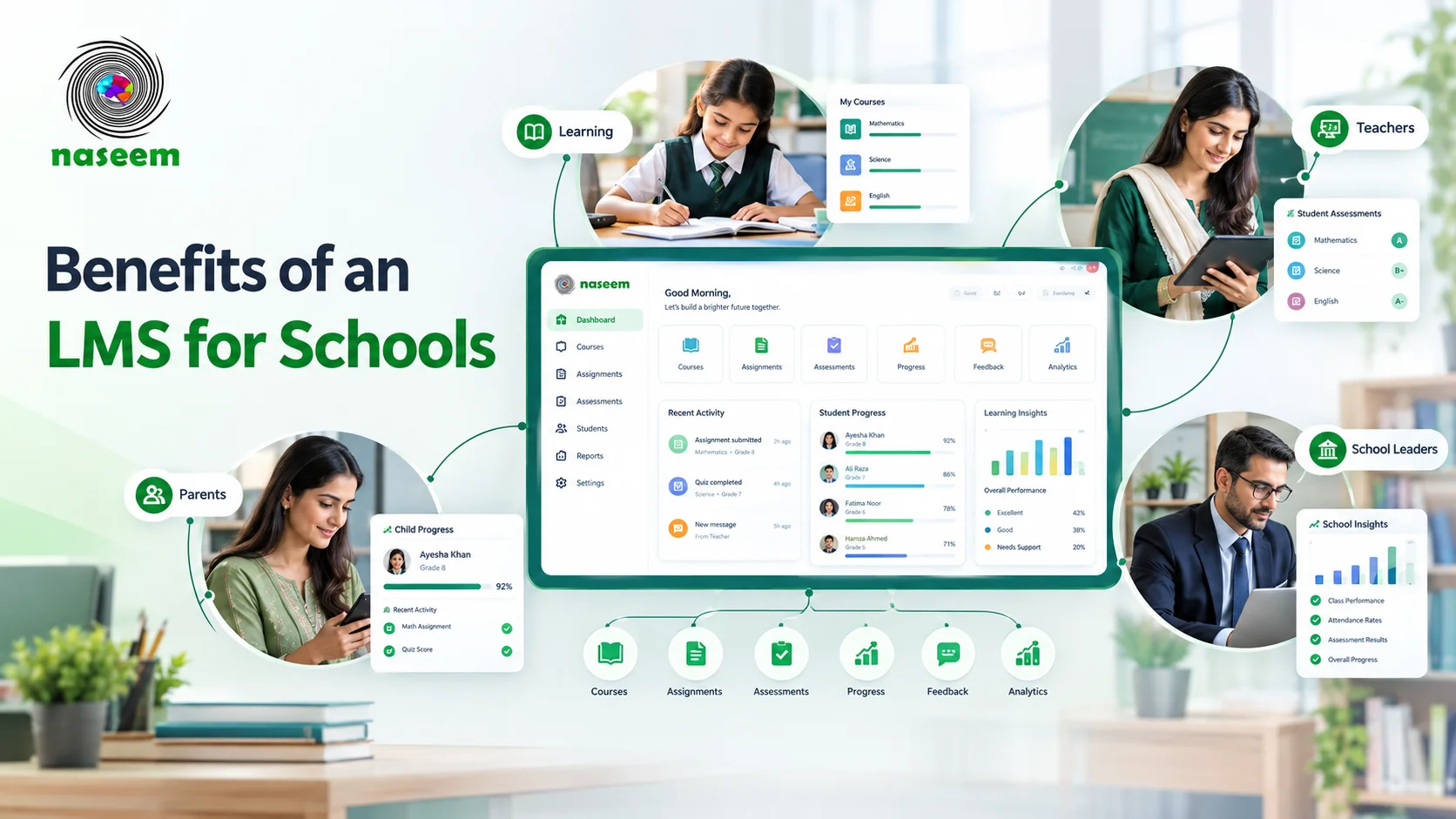
A university LMS may be organized around departments, degree programmes, semester-based courses, university faculty and enrolled students. A school LMS may need to support class groups, school subjects, younger learners, teacher coordination and communication with parents.
The distinction is about the institution's needs, not a fixed rule that every university or school must follow the same model.
| Area | University LMS | School LMS |
|---|---|---|
| Main users | University students, faculty and relevant administrators | School students, teachers, administrators and, where supported, parents |
| Course structure | Often organized around programmes, departments or semesters | Often organized around grades, classes and school subjects |
| Assessments | May support coursework, quizzes and other university assessment activities | May support classwork, homework, tests and school-level assessments |
| Student progress | May focus on course participation and academic performance | May include progress across subjects, classes and learning activities |
| Parent involvement | Depends on university policy and system design | May include parent access to relevant progress and performance information |
| Administration | May involve faculty, departments and university-level permissions | May involve teachers, coordinators, school leaders and parent access controls |
These are general patterns rather than verified descriptions of every JUW or school workflow.
For school leaders, the practical question is whether an LMS supports the institution's teaching model, assessment process, user roles and reporting needs.
A university portal should not automatically be treated as a suitable school platform simply because both systems are called learning management systems.
How to Choose an LMS for Your School
Choosing a school LMS starts with identifying the tasks teachers, students and administrators need to complete. A long feature list is less useful than a clear understanding of the school's daily learning process.
Before evaluating a platform, consider the following areas.
Course Management and Online Learning
Teachers should be able to organize subjects, courses, lessons, learning materials and activities in a way that students can understand.
Ask whether the LMS supports the school's curriculum and whether teachers can update content without unnecessary technical work.
Assignments, Assessments and Grading
Review how teachers create assignments, receive student work, assess learning and provide feedback.
If automatic grading is important, check which question types and assessment formats the platform supports. Do not assume every assignment can be graded automatically.
Student Progress Tracking
Find out what information teachers can see about student progress, assessment results and completion of learning activities.
Reports should help teachers identify where students may need support, while leaving room for professional judgment about the reasons behind the results.
Teacher Usability
Teachers need a platform they can use for routine work, including preparing lessons, managing learning activities, reviewing submissions and giving feedback.
During a product demonstration, ask teachers to complete typical tasks rather than judging the interface from screenshots alone.
Parent Access and Communication
Decide what parents should be able to see and how the school wants to communicate with them.
If parent access is required, verify that the platform supports appropriate permissions and displays only information relevant to each family.
Access Controls and Data Protection
Ask how user accounts, roles and permissions are managed. Review the provider's privacy documentation, data handling practices, backup arrangements and available security information.
Do not assume that a platform meets your school’s requirements simply because it uses an LMS or supports password-protected accounts.
Web and Mobile Access
Check whether students and teachers can use the platform on the devices they already have.
If many users rely on smartphones, test common tasks on mobile browsers or supported applications. Consider the school's internet connectivity and how easily users can access learning materials.
Training, Support and Implementation
Ask what onboarding, teacher training and ongoing technical support are available.
A suitable platform should fit the school's available resources and implementation schedule. Confirm any additional costs, required integrations and support arrangements before making a decision.
For a broader evaluation framework, read our guide to the key features of a learning management system and our complete guide to learning management systems for schools.
Explore Naseem Education's LMS for Schools
Naseem Education provides a learning management system designed for schools. Its product information describes capabilities for course management, online learning, assignments, assessments, automatic grading, student progress tracking, teacher management, parent engagement, learning analytics, personalized learning, gamified learning, multilingual support and web and mobile access.
These capabilities address needs that school leaders may want to evaluate when comparing LMS platforms.
For example, a school looking to organize lessons and assignments can examine the course-management and learning-delivery tools. A school that wants teachers to review academic performance can assess the progress-tracking and analytics functions. If parent visibility is a requirement, school leaders can ask how the platform manages parent access and which student information it makes available.
The appropriate fit depends on the school's requirements, implementation plans and the specific capabilities available in the product.
Naseem Education is separate from Jinnah University for Women's LMS. It does not operate the JUW portal, provide JUW account credentials or resolve JUW login issues.
To review its school-focused features, visit the Naseem Education LMS page.
Looking for an LMS for Your School?
Before choosing an LMS, identify what your school needs from course management, assessment, student progress reporting, teacher workflows and parent access. Then compare those requirements with the platform’s documented capabilities and available support.
Explore Naseem Education's LMS to see whether its school-focused tools fit your institution's needs.
Explore Naseem Education's LMS for Schools
If you would prefer to discuss your school's requirements, you can also visit the Naseem Education contact page.
Frequently Asked Questions About JUW LMS
Ready to Bring Your School’s Learning Together?
Give your school a connected learning management system designed to support students, teachers, parents, and school leaders.